Checkpoint Preview
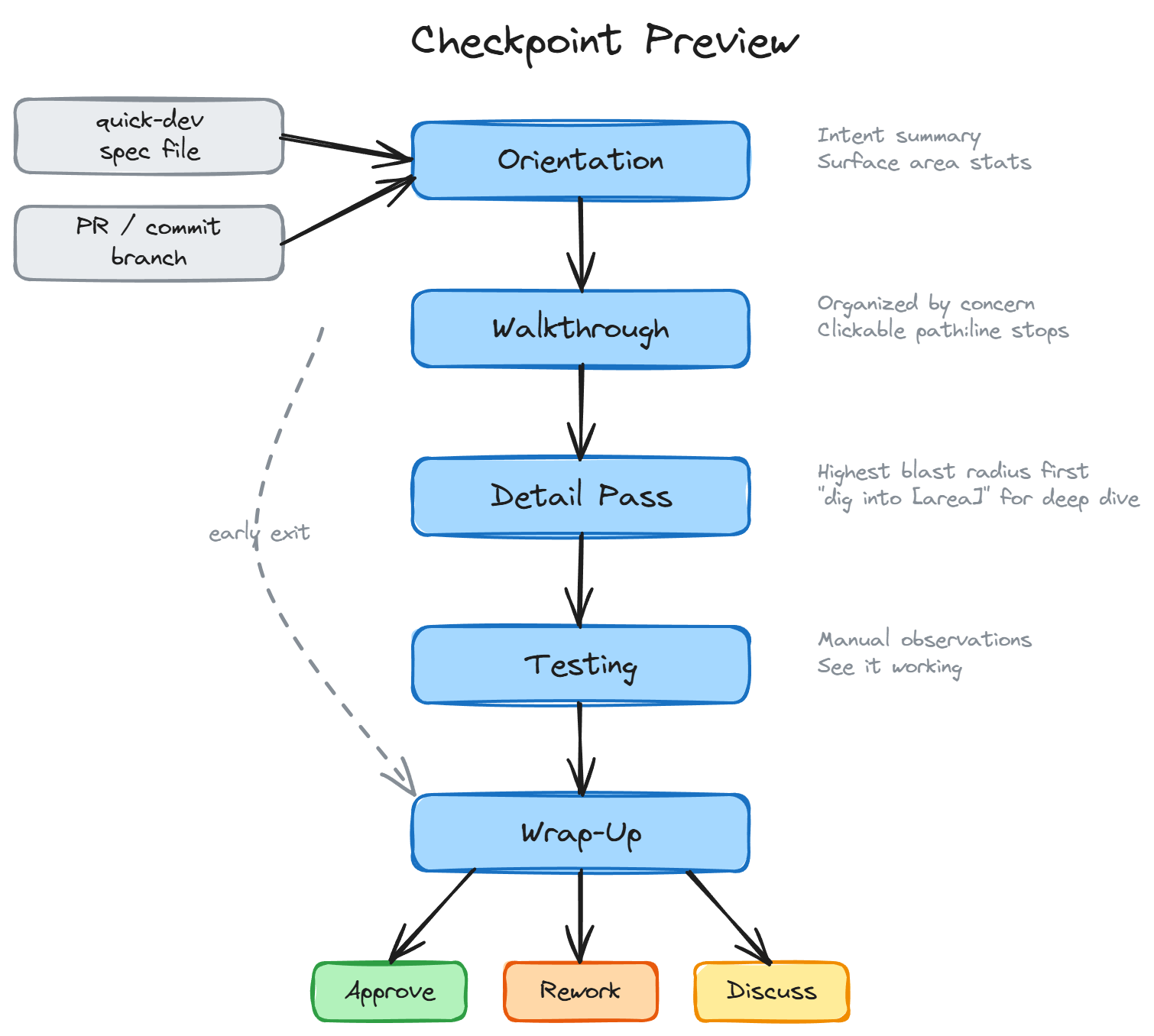
bmad-checkpoint-preview is an interactive, LLM-assisted human-in-the-loop review workflow. It walks you through a code change — from purpose and context into details — so you can make an informed decision about whether to ship, rework, or dig deeper.
The Typical Flow
Section titled “The Typical Flow”You run bmad-quick-dev. It clarifies your intent, builds a spec, implements the change, and when it’s done it appends a review trail to the spec file and opens it in your editor. You look at the spec and see the change touched 20 files across several modules.
You could eyeball the diff. But 20 files is where eyeballing starts to fail — you lose the thread, miss a connection between two distant changes, or approve something you didn’t fully understand. So instead, you say “checkpoint” and the LLM walks you through it.
That handoff — from autonomous implementation back to human judgment — is the primary use case. Quick-dev runs long with minimal supervision. Checkpoint Preview is where you take back the wheel.
Why It Exists
Section titled “Why It Exists”Code review has two failure modes. In one, the reviewer skims the diff, nothing jumps out, and they approve. In the other, they methodically read every file but lose the thread — they see the trees and miss the forest. Both result in the same outcome: the review didn’t catch the thing that mattered.
The underlying issue is sequencing. A raw diff presents changes in file order, which is almost never the order that builds understanding. You see a helper function before you know why it exists. You see a schema change before you understand what feature it supports. The reviewer has to reconstruct the author’s intent from scattered clues, and that reconstruction is where attention fails.
Checkpoint Preview solves this by making the LLM do the reconstruction work. It reads the diff, the spec (if one exists), and the surrounding codebase, then presents the change in an order designed for comprehension — not for git diff.
How It Works
Section titled “How It Works”The workflow has five steps. Each step builds on the previous one, progressively shifting from “what is this?” toward “should we ship it?“
1. Orientation
Section titled “1. Orientation”The workflow identifies the change (from a PR, commit, branch, spec file, or the current git state) and produces a one-line intent summary plus surface area stats: files changed, modules touched, lines of logic, boundary crossings, and new public interfaces.
This is the “is this what I think it is?” moment. Before reading any code, the reviewer confirms they’re looking at the right thing and calibrates their expectations for scope.
2. Walkthrough
Section titled “2. Walkthrough”The change is organized by concern — cohesive design intents like “input validation” or “API contract” — not by file. Each concern gets a short explanation of why this approach was chosen, followed by clickable path:line stops that the reviewer can follow through the code.
This is the design judgment step. The reviewer evaluates whether the approach is right for the system, not whether the code is correct. Concerns are sequenced top-down: the highest-level intent first, then supporting implementation. The reviewer never encounters a reference to something they haven’t seen yet.
3. Detail Pass
Section titled “3. Detail Pass”After the reviewer understands the design, the workflow surfaces 2-5 spots where a mistake would have the highest blast radius. These are tagged by risk category — [auth], [schema], [billing], [public API], [security], and others — and ordered by how much breaks if they’re wrong.
This is not a bug hunt. Automated tests and CI handle correctness. The detail pass activates risk awareness: “here are the places where being wrong costs the most.” If the reviewer wants to go deeper on a specific area, they can say “dig into [area]” for a targeted correctness-focused re-review.
If the spec went through adversarial review loops (machine hardening), those findings are surfaced here too — not the bugs that were fixed, but the decisions that the review loop flagged that the reviewer should be aware of.
4. Testing
Section titled “4. Testing”Suggests 2-5 ways to manually observe the change working. Not automated test commands — manual observations that build confidence no test suite provides. A UI interaction to try, a CLI command to run, an API request to send, with expected results for each.
If the change has no user-visible behavior, it says so. No invented busywork.
5. Wrap-Up
Section titled “5. Wrap-Up”The reviewer makes the call: approve, rework, or keep discussing. If approving a PR, the workflow can help with gh pr review --approve. If reworking, it helps diagnose whether the problem was the approach, the spec, or the implementation, and helps draft actionable feedback tied to specific code locations.
It’s a Conversation, Not a Report
Section titled “It’s a Conversation, Not a Report”The workflow presents each step as a starting point, not a final word. Between steps — or in the middle of one — you can talk to the LLM, ask questions, challenge its framing, or pull in other skills to get a different perspective:
- “run advanced elicitation on the error handling” — push the LLM to reconsider and refine its analysis of a specific area
- “party mode on whether this schema migration is safe” — bring multiple agent perspectives into a focused debate
- “run code review” — generate structured agentic findings with adversarial and edge-case analysis
The checkpoint workflow doesn’t lock you into a linear path. It gives you structure when you want it and gets out of the way when you want to explore. The five steps are there to make sure you see the whole picture, but how deep you go at each step — and what tools you bring in — is entirely up to you.
The Review Trail
Section titled “The Review Trail”The walkthrough step works best when it has a Suggested Review Order — a list of stops the spec author wrote to guide reviewers through the change. When a spec includes this, the workflow uses it directly.
When no author-produced trail exists, the workflow generates one from the diff and codebase context. A generated trail is lower quality than an author-produced one, but far better than reading changes in file order.
When to Use It
Section titled “When to Use It”The primary scenario is the handoff from bmad-quick-dev: the implementation is done, the spec file is open in your editor with a review trail appended, and you need to decide whether to ship. Say “checkpoint” and go.
It also works standalone:
- Reviewing a PR — especially one with more than a handful of files or cross-cutting changes
- Onboarding to a change — when you need to understand what happened on a branch you didn’t write
- Sprint review — the workflow can pick up stories marked
reviewin your sprint status file
Invoke it by saying “checkpoint” or “walk me through this change.” It works in any terminal, but you’ll get more out of it inside an IDE — VS Code, Cursor, or similar — because the workflow produces path:line references at every step. In an IDE-embedded terminal those are clickable, so you can jump from file to file as you follow the review trail.
What It Is Not
Section titled “What It Is Not”Checkpoint Preview is not a substitute for automated review. It does not run linters, type checkers, or test suites. It does not assign severity scores or produce pass/fail verdicts. It is a reading guide that helps a human apply their judgment where it matters most.